
How to create an invoice
- Add your business and customer information.
- Add products or services, quantities, prices, tax and discounts.
- Review the live preview and choose Download PDF.
Free online invoice maker
Work delivered. Invoice ready.
Create an invoice, check the totals and save a PDF. Free to use, with no signup or NineBrief watermark.
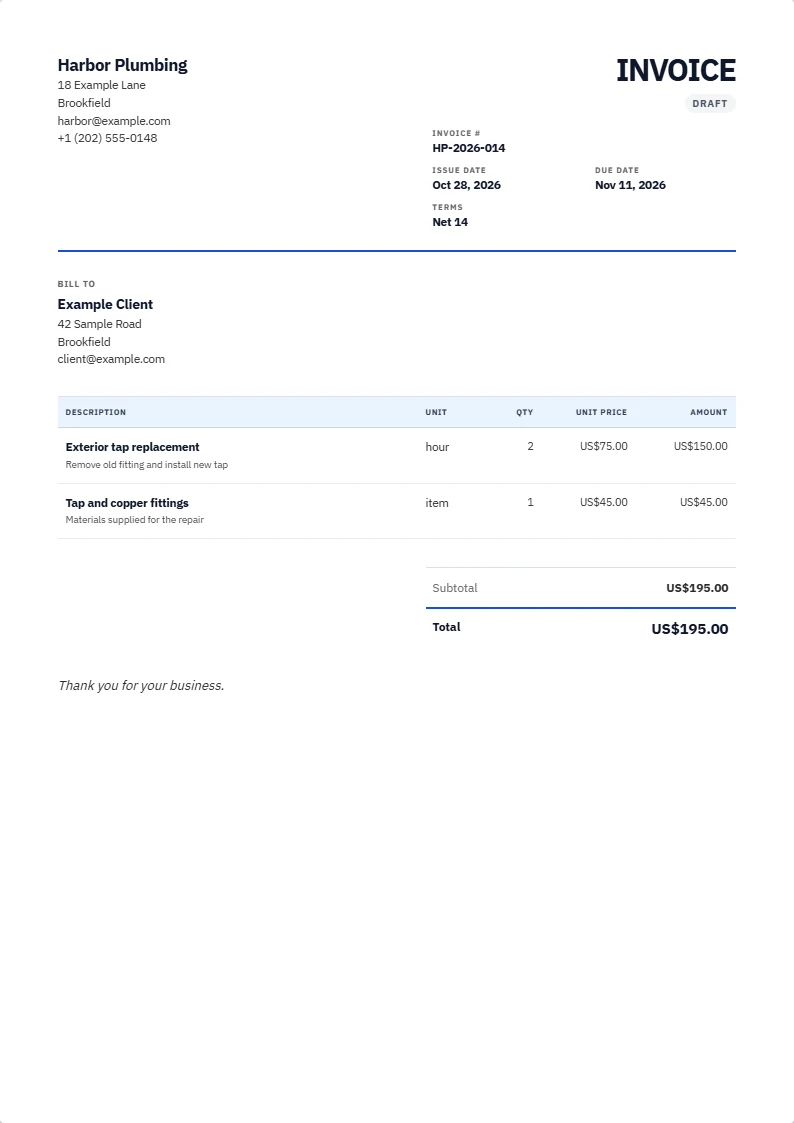
Simple invoicing, without an account
For freelancers, contractors and small businesses: create a professional invoice without an account. Enter your business and customer details, add line items, choose your currency and invoice style, and export the finished invoice as a PDF.
The current free generator stores the draft in your browser. NineBrief does not require an account or server-side invoice storage to use this tool.
Use your logo, multiple currencies, payment terms, taxes, line discounts, invoice discounts, shipping charges, payment instructions, custom units and several professional invoice templates.
Your invoice, your details
Edit the invoice directly, check a clean preview and save a PDF. No account required.
See the finished invoice
These invoice examples use the same renderer and designs as Business templates. Compare the full business and customer details, item descriptions, dates, references, totals and payment instructions.
A confident green header for creative projects and service work.

| Description | Unit | Qty | Unit price | Amount |
|---|---|---|---|---|
| Design consultationDiscovery session and recommendations | hour | 2 | $75.00 | $150.00 |
| Layout preparationBrand styling and print-ready files | project | 1 | $125.00 | $125.00 |
Please include the invoice number with your payment.
Payment is due within 14 days of the invoice date.
Blue headings and clear references for technical milestones and deliverables.
| Description | Unit | Qty | Unit price | Amount |
|---|---|---|---|---|
| Website buildFive-page responsive website | project | 1 | £1,200.00 | £1,200.00 |
| Testing and handoverBrowser checks and owner training | hour | 4 | £75.00 | £300.00 |
Please include the invoice number with your payment.
Payment is due within 14 days of the invoice date.
An amber reference-led layout for work descriptions, quantities and site details.
| Description | Unit | Qty | Unit price | Amount |
|---|---|---|---|---|
| Installation labourStorage units fitted in workshop | hour | 8 | A$90.00 | A$720.00 |
| Shelving materialsTwo prefinished storage units | unit | 2 | A$75.00 | A$150.00 |
Please include the invoice number with your payment.
Payment is due within 14 days of the invoice date.
The examples show USD 275.00, GBP 1,500.00 and AUD 870.00 respectively, with no tax, discount or amount paid. They illustrate layout and arithmetic, not local tax requirements. Expand each invoice to read it, or create your own invoice.
Make it yours
An invoice should make it easy to identify the work, check the amount and pay on time. Start with your details, then adjust the presentation around them.
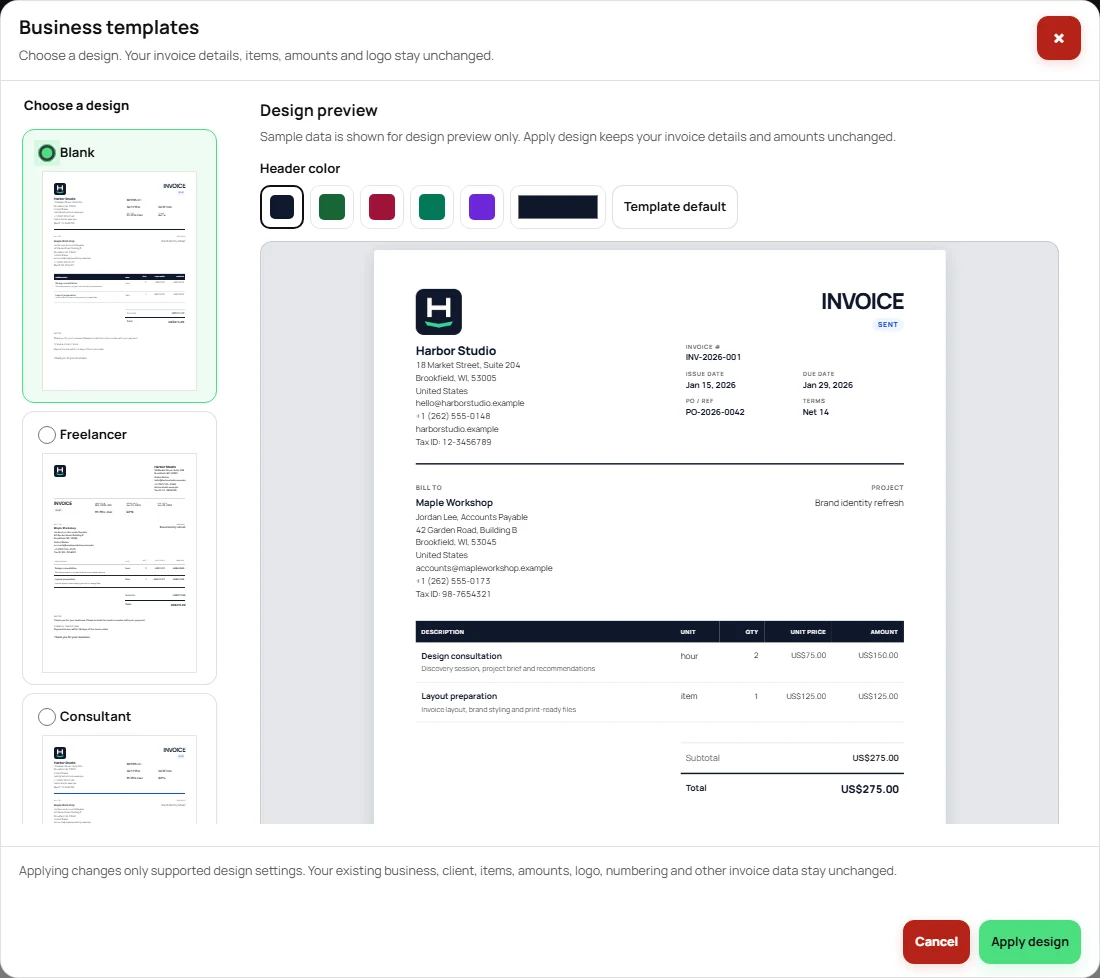
Use Agency for a strong branded introduction, Web / Software for technical work, Retail / Supplier for goods, or Construction for site and job references. Minimal Corporate keeps the presentation restrained; Professional Services and Executive offer a more formal feel. These names are design suggestions, not industry restrictions.
Compare all ten business designs
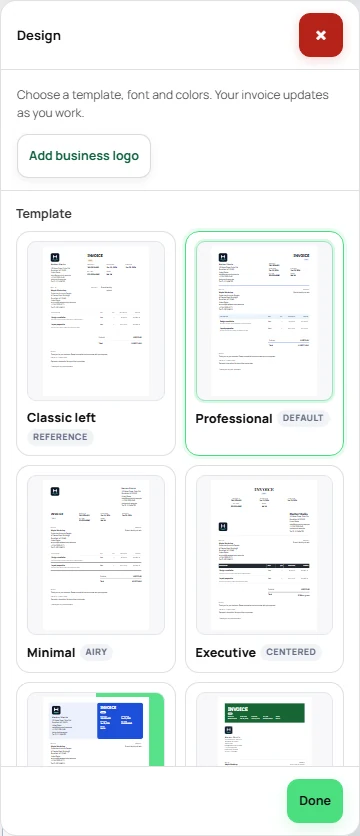
In Business templates, preview a design and its header colour before applying it. In Design, adjust the font, theme, text size and table heading style. Applying a business design preserves your business, customer, items and amounts. Check the final Preview after every appearance change.
Use Add business logo in the business details or Design panel. Upload a PNG, JPG, WebP or GIF up to 1.5 MB. A simple, high-contrast logo stays clear in the preview and exported PDF. Your business name and contact details remain part of the invoice.
Select the currency in Invoice details, or enter a supported three-letter code using the custom option. Use USD, GBP, EUR, CAD, AUD or another currency appropriate to your agreement. Changing currency changes the money formatting; it does not convert your prices using an exchange rate.
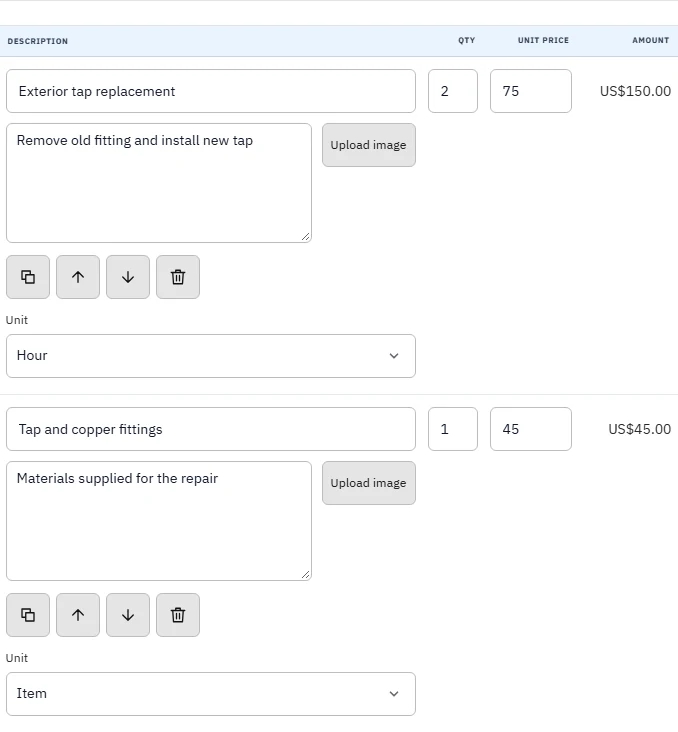
Add the description, quantity and rate for each line. Use hours for time, items or units for goods, or a custom unit for your work. Add line details when the customer needs a service period, deliverable or specification. Show or hide the unit column without losing its values.
Use invoice-level tax for one rate, or item-level tax when lines need different rates. Choose line or invoice discounts as appropriate, and add shipping or another labelled charge. Check the total and balance due before downloading. The tool calculates from the values you enter; it does not determine your tax obligations.
From draft to the next document
Use the document you have already entered as a starting point. Each action has a different purpose; review the new document before sending it.
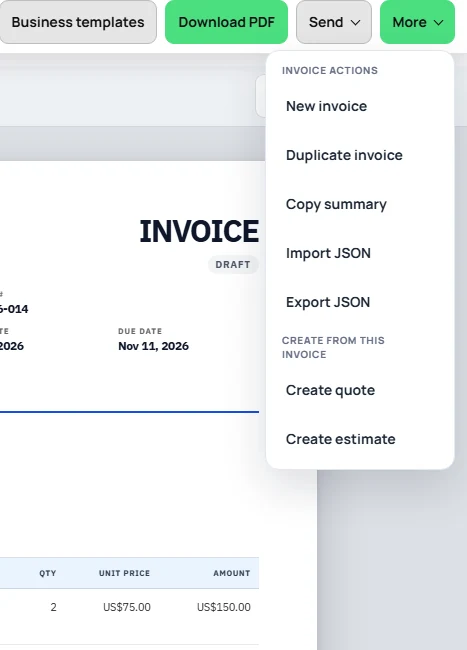
Open More → Create quote or Create estimate. Review the transferred business, customer and item information in the Quote/Estimate tool, then set the appropriate number, dates, validity and terms. A quote proposes a price; an invoice requests payment. Conversion creates a draft, not customer acceptance or a payment record.
Use More → Create delivery note when you need a handover record. Confirm the quantity delivered now for each line, using zero for anything not included, then review the recipient and delivery address. A delivery note describes the handover; it is not a payment request.
Use More → Duplicate invoice to start from familiar details. Check the new document number, dates, items, amounts and payment instructions before using it. Duplicating a draft does not schedule an invoice or send recurring payments.
Download PDF opens your browser’s print dialog. Choose its PDF destination, inspect every page and save the file. Your exported invoice uses your selected design and branding without a NineBrief watermark. Keep the PDF as your finished copy.
Use More → Export JSON before replacing a draft or clearing browser data. Import that backup in the Invoice tool when you need to edit it again. A PDF is a finished document; JSON preserves editable invoice data. The working browser draft is not a cloud archive and does not sync between devices.
Use Send → Email invoice to open your mail app with an invoice summary. Attach the downloaded PDF yourself and check the recipient before sending. Where supported, Share summary opens your device’s sharing options. Neither action creates a hosted invoice or payment link.

Built around the work you do
Labour, materials, a site visit or a finished project: describe each part clearly so your customer can understand the bill. Use hours, items or a custom unit, and keep job references alongside the work.
Start with the free tool, then choose a document design that suits your business.
Create your invoice →From first detail to finished PDF
Follow these steps in the NineBrief invoice editor, or read the complete invoicing guide.
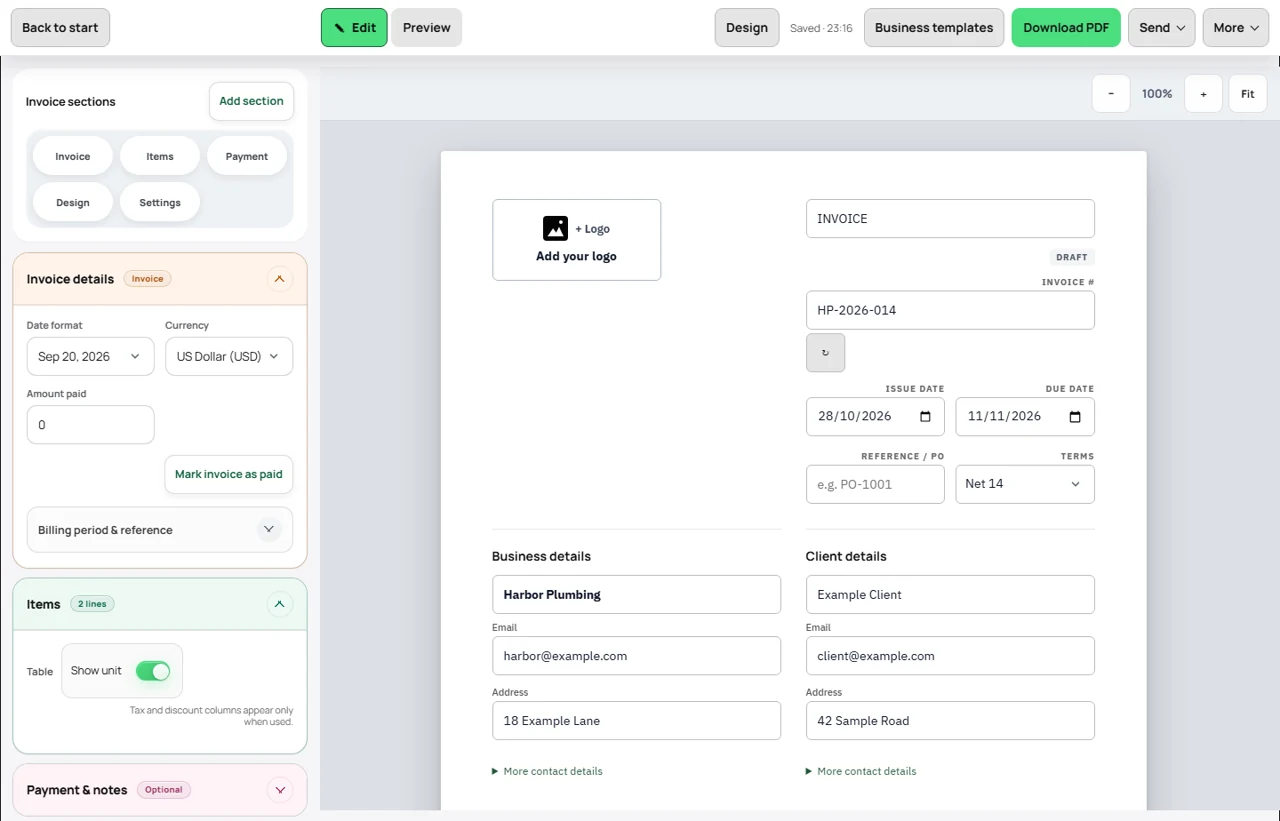
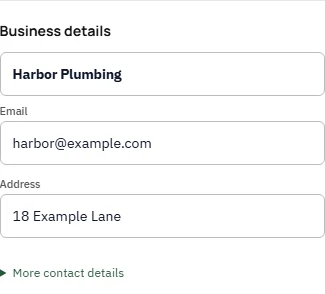
View full-size screenshot ↗Enter names and contact details, then check the invoice number, issue date and due date.
View full-size screenshot ↗Add labour and materials on separate lines. Set each quantity, rate and unit, and review the calculated amounts.
 View full-size screenshot ↗
Open Design to adjust the font and colours, or preview a business template before applying it.
View full-size screenshot ↗Switch to Preview. Check the customer, currency, totals and payment instructions before exporting.
View full-size screenshot ↗Choose Download PDF and your browser’s PDF destination. Use More → Export JSON to keep an editable copy.
Include the seller and customer, a unique invoice number, issue and due dates, an itemised description of the work or goods, quantities and rates, the currency, applicable taxes and discounts, the total and payment instructions. Include tax IDs or other required information when relevant to your business and jurisdiction.
Match the description to the agreed work, make the payment reference easy to find, and check the final balance. For a detailed walkthrough, read the first-invoice guide. For examples that fit your work, explore freelancers, contractors and small suppliers.
Find step-by-step instructions for editing, PDF export, draft backups and common problems.
Open the Help Center →Before you start
Clear answers, so you can get on with the work.
Yes. The current invoice generator is free to use and does not require an account.
No. You can create, edit and export an invoice without signing up or logging in.
Yes. Use the Download PDF button and your browser’s PDF export option to save the invoice as a PDF.
No. The exported invoice contains your invoice content and branding, without a NineBrief watermark.
Your working draft is stored in this browser. It does not sync to a NineBrief account or another device. Export a JSON backup before replacing a draft or clearing browser data.
Yes. Currency and design are separate choices. Select your invoice currency in Invoice details and keep the layout you prefer. Review the agreed prices because the tool does not perform exchange-rate conversion.
No. Applying a business design changes supported presentation settings while retaining your entered business and customer details, logo, items and amounts. Review the preview before exporting.
Yes. Choose More → Create quote or Create estimate in the Invoice editor. Review the destination draft and its dates, validity and terms before sharing it.
You can enter your business details and choose the currency you use, including GBP, USD, CAD and AUD. Required fields and tax treatment depend on your location, registration and transaction. Check the requirements that apply to you; choosing a currency or template does not certify compliance.
No. The current free tool creates and exports browser-local documents. Accounts, cloud storage, scheduling and automatic recurring delivery are not available in this generator.
Articles & guides
Practical reads, worked examples and advice for the work you do.

Invoice flower arrangements, delivery, onsite setup and vase hire with a checked $1,517 order example and clear substitution rules.
Explore industry examples
Build an itemized repair invoice from an authorized estimate, with a $629 example covering diagnosis, labor, parts, supplies and customer approval.
Explore industry examples
Create a clear landscaping invoice for scheduled visits, hedge care, mulch, disposal and authorized extra work, with a checked $922 example.
Explore industry examples
Fix a sent invoice without losing the original: choose between a replacement, a credit or an extra charge, with a worked payment example.
Read the guide